
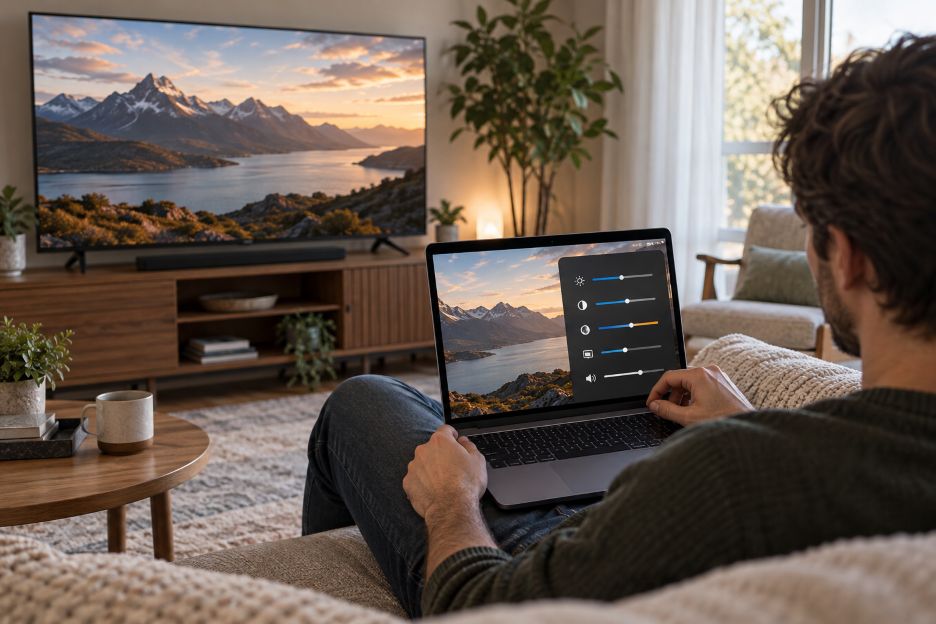
Streaming quality depends on your connection, playback software, and the equipment carrying the picture and sound. Netflix identifies network speed, account settings, device support, and video connections as factors affecting image quality. Before replacing hardware or upgrading your internet plan, check how those parts work together. A focused review gives you a clearer starting point for troubleshooting.
For households watching across laptops, televisions, and mobile devices, start by reviewing playback settings. Readers who want to configure streaming on macOS can use that setup guide as a reference, then confirm service-specific requirements with the provider. Work through these six checks in order, testing after each adjustment rather than changing everything together.
1. Check Connection Stability Where You Watch
Netflix recommends a stable connection of at least 3 Mbps for 720p, 5 Mbps for 1080p, and 15 Mbps for 4K. These are service-specific recommendations, so check other providers separately. Measure performance on the device you actually watch, rather than relying only on the speed advertised with your broadband package.
Repeat the test when interruptions usually happen. Note whether playback improves closer to the router. For weak wireless reception, Netflix suggests moving the router and device closer together, keeping the router elevated, and placing it away from other wireless equipment. Try those adjustments before deciding that your internet subscription needs replacing.
2. Confirm App and Browser Compatibility
A service opening successfully does not establish that every playback feature is supported. The browser requirements published by Netflix list different maximum resolutions on Mac: compatible Safari setups can reach Ultra HD, while Chrome and Firefox are listed up to 1080p. Additional hardware and operating-system requirements still apply.
Check the provider’s supported-device page before installing another application. Confirm your operating system, browser version, and intended viewing quality. Update supported software, then replay the same programme. Keep a simple note of what changed. This gives you a useful comparison instead of leaving you unsure which adjustment helped.
For shared household devices, repeat this check separately. Do not assume that a successful laptop setup establishes compatibility on a tablet or television. Use each device’s requirements as the reference.
3. Inspect the Complete Display Connection
A 4K television is one part of a compatible setup. Netflix explains that connected players, receivers, cables, and ports must support the intended picture quality. Its Mac guidance also specifies requirements for external displays and protected video connections. Check the complete route from computer to screen, including any adapter between them.
Write down the model of your display and the specifications of your adapter. Compare them with the provider’s requirements before buying replacements. If possible, test a simpler connection that removes an intermediate component. Treat the result as a diagnostic clue, then consult the equipment documentation before settling on a permanent arrangement.
4. Match Video Settings to Content and Equipment
Resolution, dynamic range, and frame rate deserve separate attention. Apple provides Match Dynamic Range and Match Frame Rate settings on supported Apple TV models. These allow output to follow the original content format within the television’s supported capabilities. A brief blank screen or flicker can occur while the television switches formats.
Review account settings as well. Netflix recommends Auto or High data settings for 1080p and 4K playback, alongside a suitable subscription and compatible equipment. Its guidance says playback may begin at a lower resolution before improving. Give the picture time to settle before judging an adjustment.
Choose one familiar scene for comparison. Examine faces, movement, and darker areas, then change one setting. For broader context, the technology behind smoother streaming includes compression, adaptive bitrate delivery, and server infrastructure. Understanding these elements helps distinguish local playback adjustments from processes managed by the streaming provider.
5. Verify Audio Output and Format Support
Sound settings should match the equipment receiving the signal. Apple states that Apple TV 4K automatically selects supported audio available with the content. When equipment cannot handle the selected format, manual alternatives include stereo or Dolby Digital 5.1, subject to the limitations described in its support guidance.
Start by identifying the intended output: television speakers, headphones, a soundbar, or a receiver. Check that selection before changing advanced options. Then compare dialogue and background sound using the same scene. If you try another format, record the original setting so you can restore it. Avoid selecting surround options simply because they appear more advanced.
6. Review Data Usage Before Raising Quality
Higher picture settings can consume substantially more data. Netflix estimates usage of up to 3 GB per hour for HD and up to 7 GB per hour for 4K, per device. These figures are upper estimates for its service, rather than fixed consumption rates for every programme or streaming platform.
Compare your viewing routine with your plan’s allowance. For mobile viewing, review cellular controls separately from home settings. Netflix offers Wi-Fi Only and Save Data options, alongside automatic and maximum-data modes. Choose deliberately, particularly before travelling. Revisit the choice when your connection or allowance changes instead of leaving an unsuitable setting active indefinitely.
Identify the Problem Before Your Next Upgrade
Use a comparison: try another device on the same network, then another service on the original device. Problems across devices suggest investigating the network; trouble confined to one device suggests checking its software or connections. Failure in one service warrants checking its support information. These are clues, not proof. Record error messages and recent changes. That evidence makes your next troubleshooting step more precise.