
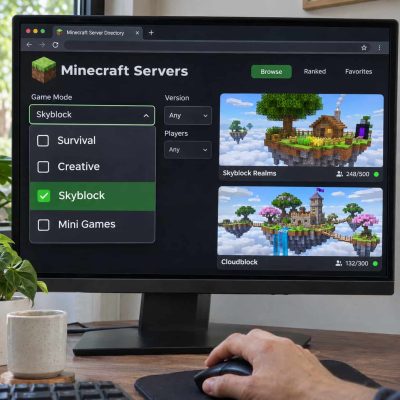
 If you want to build a town with friends, a server running short competitive matches will get old fast. To find Minecraft servers by game mode, use an online directory that lets you filter by categories such as Survival, Creative, Skyblock, and minigames. Once you find a few promising listings, check which Minecraft edition and game versions each server supports. That way, you can spend your first session playing instead of troubleshooting a connection.
Start With One Game Mode Filter
Open a server directory and look for a section called Game Mode, Server Type, or Tags. On Minecraft Server List’s filter page, select Survival, Creative, Skyblock, or Mini Games, then run the search. Start with one category so you can see what it returns before adding other filters.
Open two or three results and look for a description of the world or activity you want. A network can appear under several categories because it runs several worlds from the same lobby. If the listing mentions your mode, check the network’s website or joining guide for its current game menu. On directories with keyword search, try the name of a specific game or feature to narrow a broad category.
For example, if you want a Survival world with friends and the combined search turns up nothing, clear the extra tags and keep Survival selected. Then check each result for the rules your group needs.
What to Look For in Each Mode
Survival
Choose Survival or search for SMP (survival multiplayer) if you want to gather resources and build in a shared world. Read the rules for player combat and land claims. A server with protected claims may suit a group planning a long build, while a server that allows raids can make defending a base part of the game. Check whether the main world resets and whether you need to apply for access.
Creative
Choose Creative if your main goal is building with access to blocks and tools. Search for plots if you want a personal building area, or look for a shared world if you want to work on a larger project with friends. Check whether you can permit friends to edit your plot. If you rely on a tool like WorldEdit, check whether new players can use it and whether there are limits on edit size.
Skyblock
Choose Skyblock if you want to start with limited resources and develop an island over time. Look at what drives progress on each server. One might focus on completing challenges with the resources you have, while another might revolve around shops, trading, and island rankings. If you’re joining with friends, check whether you can share one island and how many members it allows. Look for a reset schedule before committing to a long project.
Minigames
Choose Mini Games to browse servers with short, repeatable matches. Search for the specific game you want, such as Bed Wars or parkour, because two minigame networks can have very different lineups. If you’re joining as a group, check for parties and team sizes. For games that need several players to start, look for activity in that game during your usual play hours. The total number online may include players in other modes.
Confirm Java or Bedrock Compatibility
Check the edition shown in your launcher or on the device you’ll use. Match it to the listing, then look for the connection details for your edition. A listing that says crossplay might support several Bedrock devices or explicitly support both Java and Bedrock. Some Java servers use Geyser to let Bedrock players connect. Check the joining instructions for the right address and any Bedrock port.
If you’re on a console, look for the server in the in-game Servers tab. The standard console interface limits you to featured servers. Bedrock on computers and mobile devices lets you enter a custom server address.
Match Your Game Version Before Joining
Compare the version you’re running with the versions listed on the server’s own website. If the directory has a Server Version filter, use it to narrow the results, then check the joining guide for a recommended version. For networks with several modes, look for any instructions specific to the one you chose.
If a Java server needs an older release, create a separate profile under Installations in the Minecraft Launcher and select the required version. If a modded server specifies a pack, check its release and required mod loader as well. On Bedrock, check whether an update is available through your device’s store or system menu if the server requires a newer release.
Join and Try the Mode You Filtered For
In Java, open Multiplayer and add the server address. On Bedrock for computer or mobile, open Play, select Servers, and add the address and port shown in the listing. Once you connect, use the lobby menu to enter the mode you chose. Claim a plot, visit a starter island, or play a round. You’ll learn more about how the server plays in those first few minutes than you will from its tags.